

(Scroll down for a video tutorial)
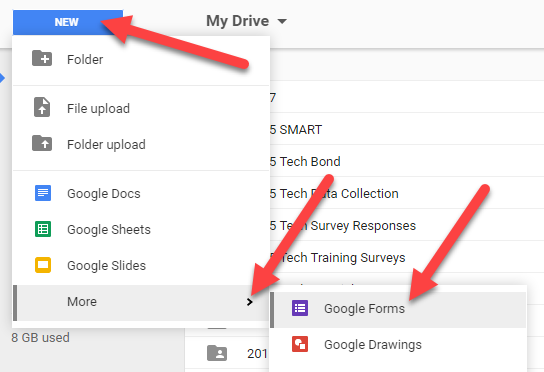
Step 1: In your Google Drive, click on New - More - Google Forms to create a new quiz.
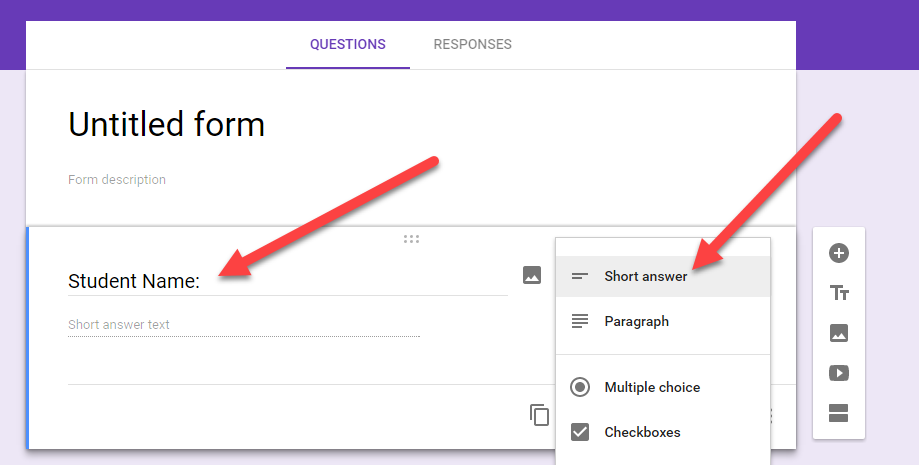
Step 2: Change the first question from “Untitled Question” to “Student Name:” Also change the answer type from multiple choice to “short answer” so students can type their name in (it’s usually a good idea to capture the names of everyone taking your quiz).
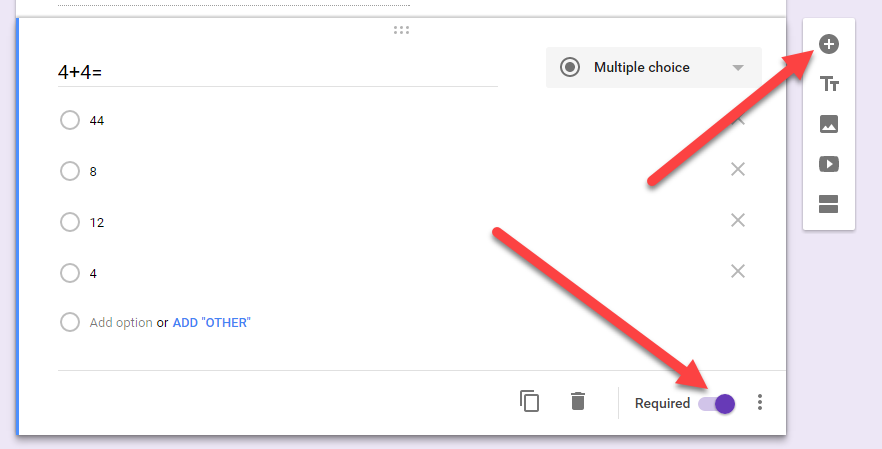
Step 3: Use the plus icon on the right to create your questions and multiple choice answers. Click “Required” for all of the questions that you want the mandatory responses from.
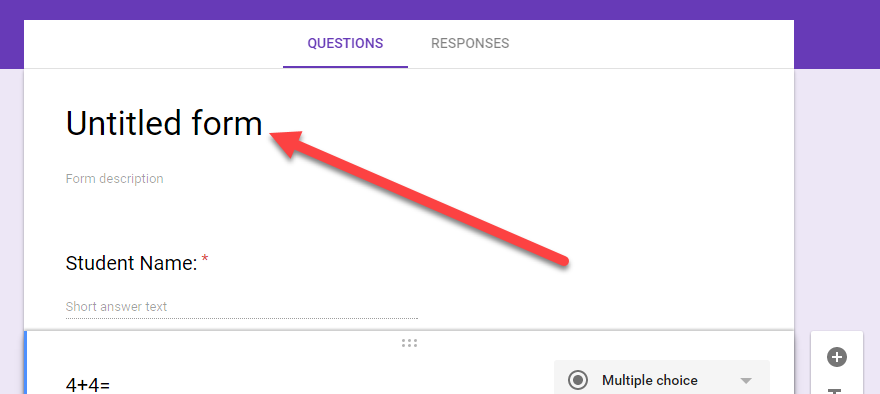
Step 4: Edit the Title of your form.
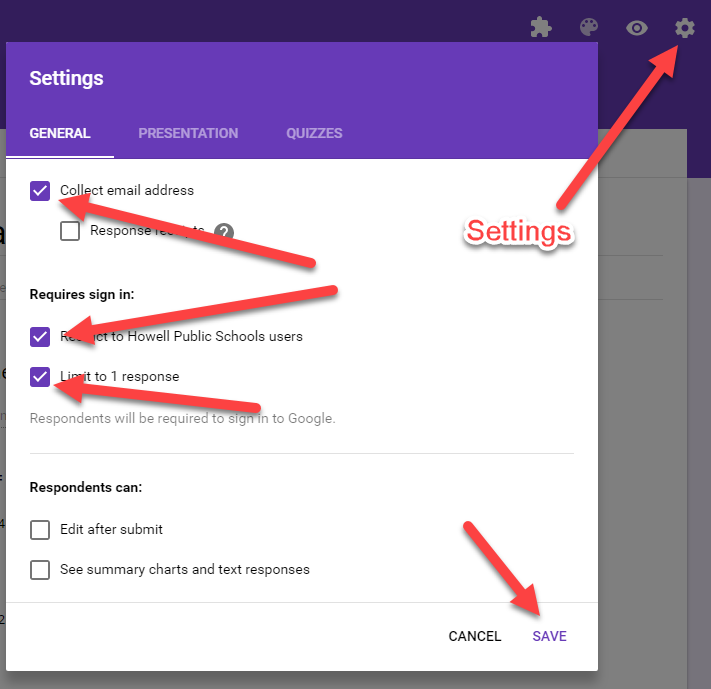
Step 5: Go to the “Settings” cog, check Collect email address, Restrict to Howell Public Schools users, and Limit to 1 response. Then click Save
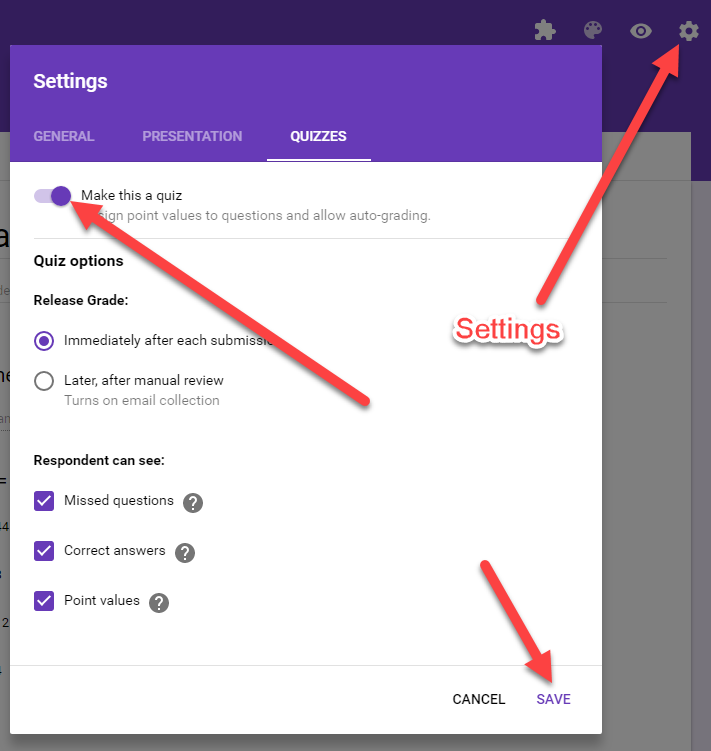
Step 6: Go back to the “Settings” cog, and this time click Quizzes. Click Make this a quiz to turn the quiz feature on. Then click Save.
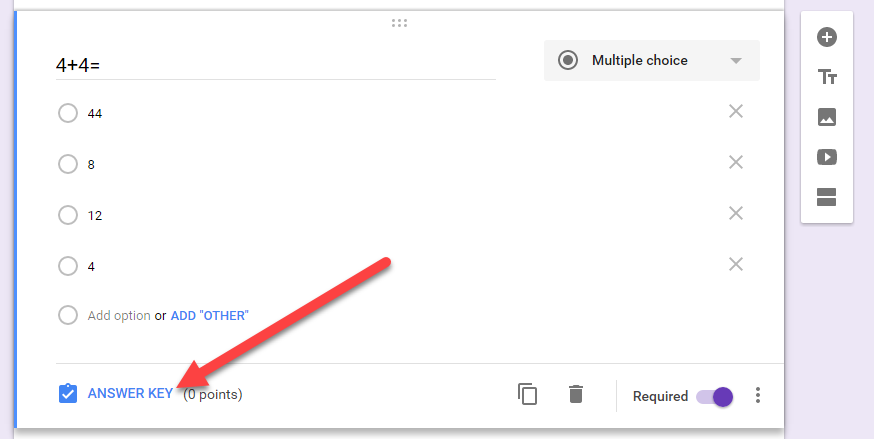
Step 7: Set the correct answer and set the points available for each question - Click on one of the questions. Then click ANSWER KEY on the bottom.
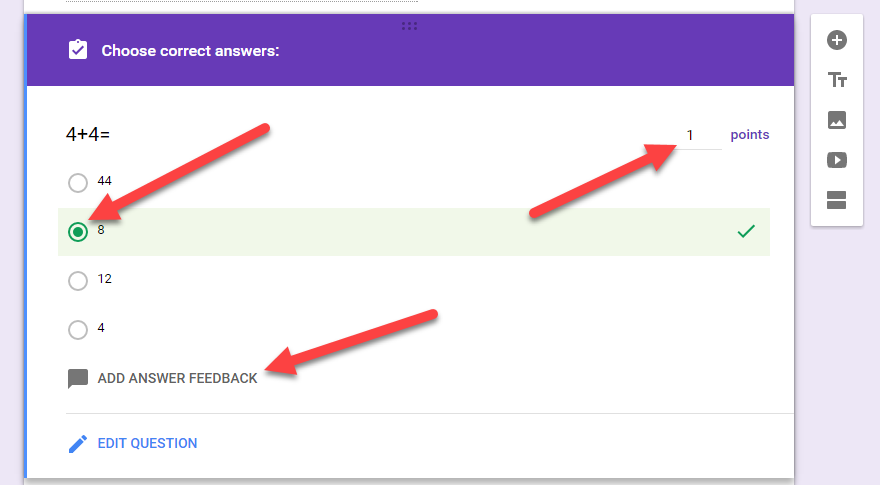
Step 8: Click the correct answer. Edit the number of points this question is worth, and add the optional answer feedback if you would like.
Step 9: Repeat step 8 for each question in your quiz.
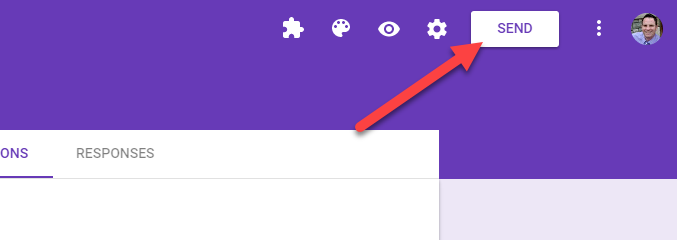
Step 10: Click Send to get a link to this quiz.
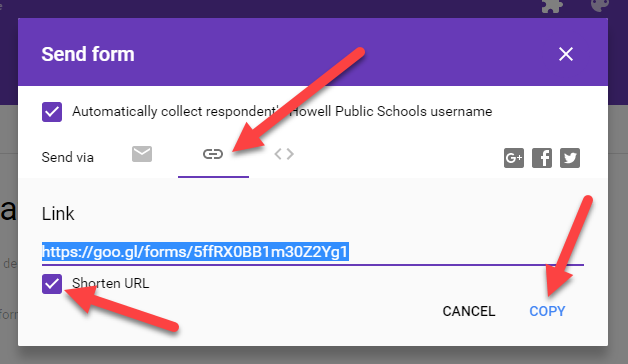
Step 11: Click the Link icon, check Shorten URL, and COPY this link.
Step 12: Add this quiz into a Google Classroom Assignment, paste the link in a Google Doc and share with students, or show the link to students using your ceiling projector.
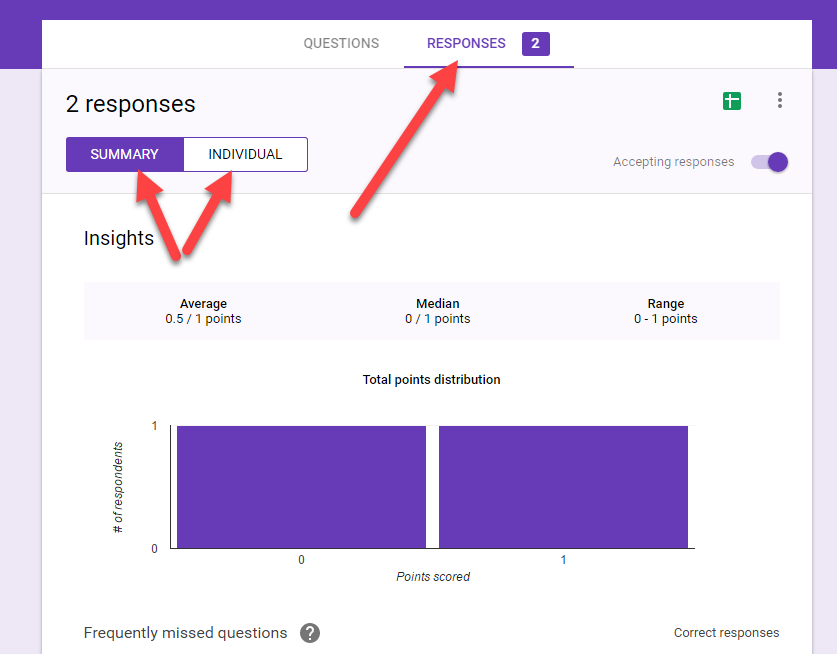
Step 13: Viewing Results - Click RESPONSES on the top. Choose to view from a Summary of the entire class, or individual student results.
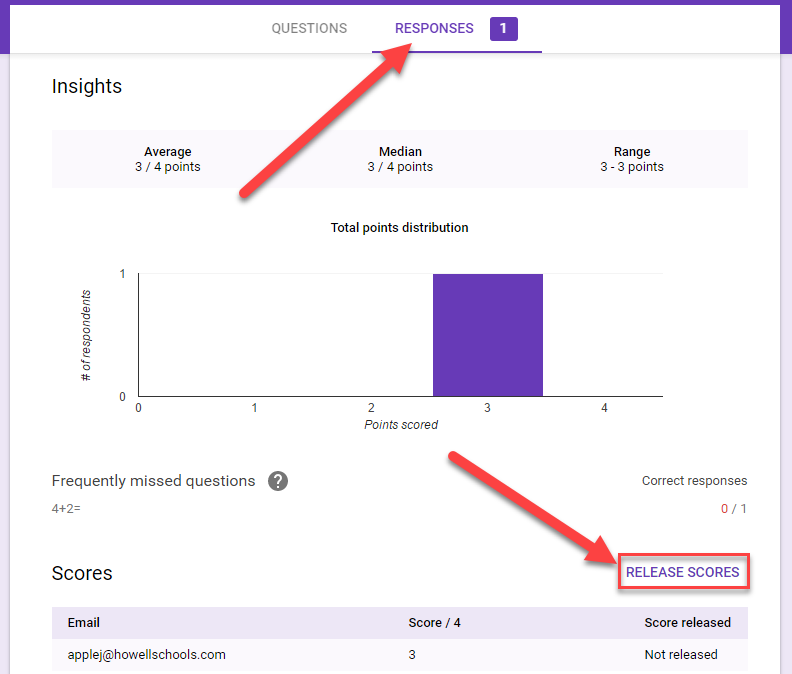
Step 14: In Responses view, scroll down and click RELEASE SCORES to automatically have Google send an email to each student who took the quiz.
You must be a kind people because you share your knowledge through articles.They contain pieces of advice.I'm so grateful for all that you've done.Thank you so much.
ReplyDeletecurrency converter box free online currency-converter-box-free
Good article also check Androdumpper apk Whatsdog apk Test dpc apk
ReplyDeleteYou absolutely have wonderful stories.Magnificent work.I trust you would not have reservations if I placed a link here?
ReplyDeleteautoketing app, email with love download, email with love free app
Nice post. I study one thing tougher on completely different blogs everyday. i'll be actual to check verify inside the works anew particular
ReplyDeletesales pop master free, pop free, autoketing app
I want to read your articles.I really appreciate for this great information,so happy to find good place to many here in the post.I think many people love and need them.
ReplyDeleteGame Toon Cup 2017 Break The Cup For boy play Battle for the Galaxy
Information is very informative also you can click nexter org ,and get such type of info, this is the great resource to get such type of information.
ReplyDelete
ReplyDeletefood games online
basketball online games
soccer free online
Information is very informative also you can click nexter org ,and get such type of info, this is the great resource to get such type of information.
E780785545
ReplyDeletekiralık hacker
hacker arıyorum
kiralık hacker
hacker arıyorum
belek
3B8B9337A2
ReplyDeleteTakipçi Satın Al
En Güzel Filmler
Google Yorum Satın Al