
 Our documents no longer need to be tied to our desktop computer. Instead of opening up a new Microsoft Word file, create a new Google Doc. Google Docs save automatically and they are available 24/7 from any device. We can use Google Drive and Google Apps to create and store all of our documents. No more emailing yourself countless attachments. This tutorial will show you how to create a Google document and also how to find that document on the cloud (Google Drive).
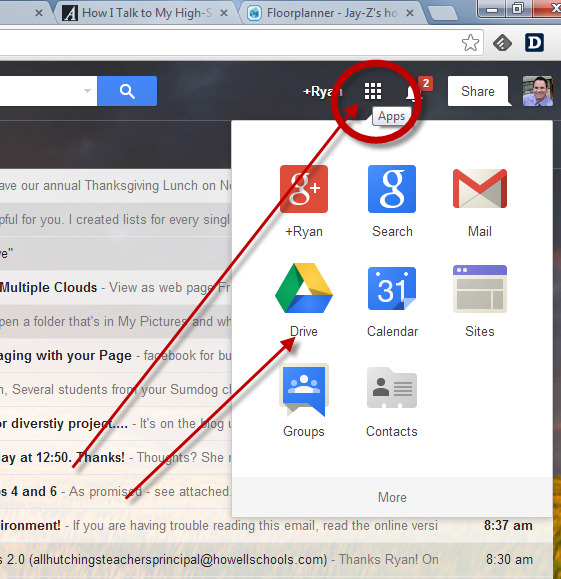
Step 1: Login into your howellschools.com email account and then click the “Apps” button. Next, click “Drive” on the top of your screen to open up a new tab that shows the contents of your Google Drive.
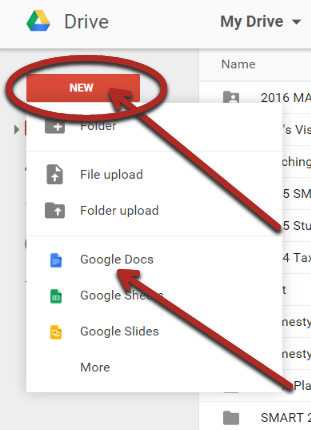
Step 2: To create a new document, click the “New” button, then click on the type of file you would like to create (‘Google Docs’ are Google’s version of Microsoft Word)
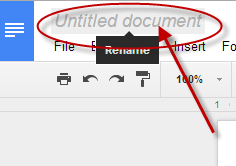
Step 3: Make sure to click on the top left of your document where it says “Untitled document” so that you can rename your document to something that will be easy to find in Drive.
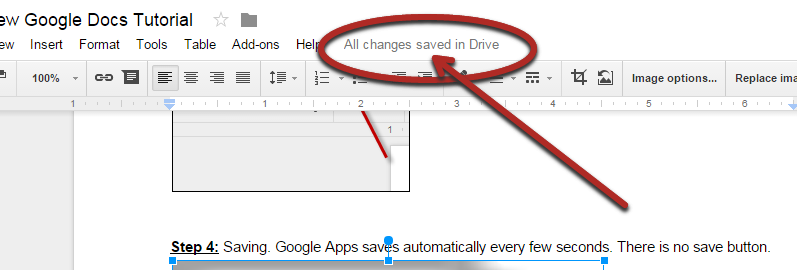
Step 4: Saving. Google Apps saves automatically every few seconds. There is no save button.
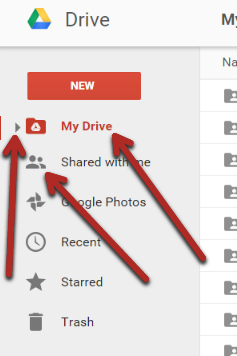
Step 5: You can toggle between the “My Drive” view, the “Shared with Me” view, and a list of any folders you have created in “My Drive” by click on the left of your screen to find your documents.
I have read news on technical sites that GiveBIG is now dominating the spring fundraising season for most nonprofits in every sector in Seattle and King County. The nonprofit community and fundraising thought leaders are trying to make sense of the GiveLocalAmerica kerfuffle. Great!!jogos friv gratis
ReplyDeleteJogos online
jogos 4 school
E168F5C9D6
ReplyDeletekiralık hacker
hacker arıyorum
belek
kadriye
serik
76851E356C
ReplyDeleteÜcretli Şov
Telegram Görüntülü Şov
Telegram Görüntülü Show Grupları
B4F17B8CC6
ReplyDeleteBeğeni Satın Al
Fake Takipçi
Tiktok Takipçi Atma
2D7FF02091
ReplyDeleteTakipçi Satın Al
En Güvenilir VPN
Güvenilir Takipçi Satın Alma